
How to Setup Insignia Fire TV Without Remote
Setting Up Insignia Fire TV Without a Remote Lost or broken your Insignia Fire TV remote? You can still complete...
Read More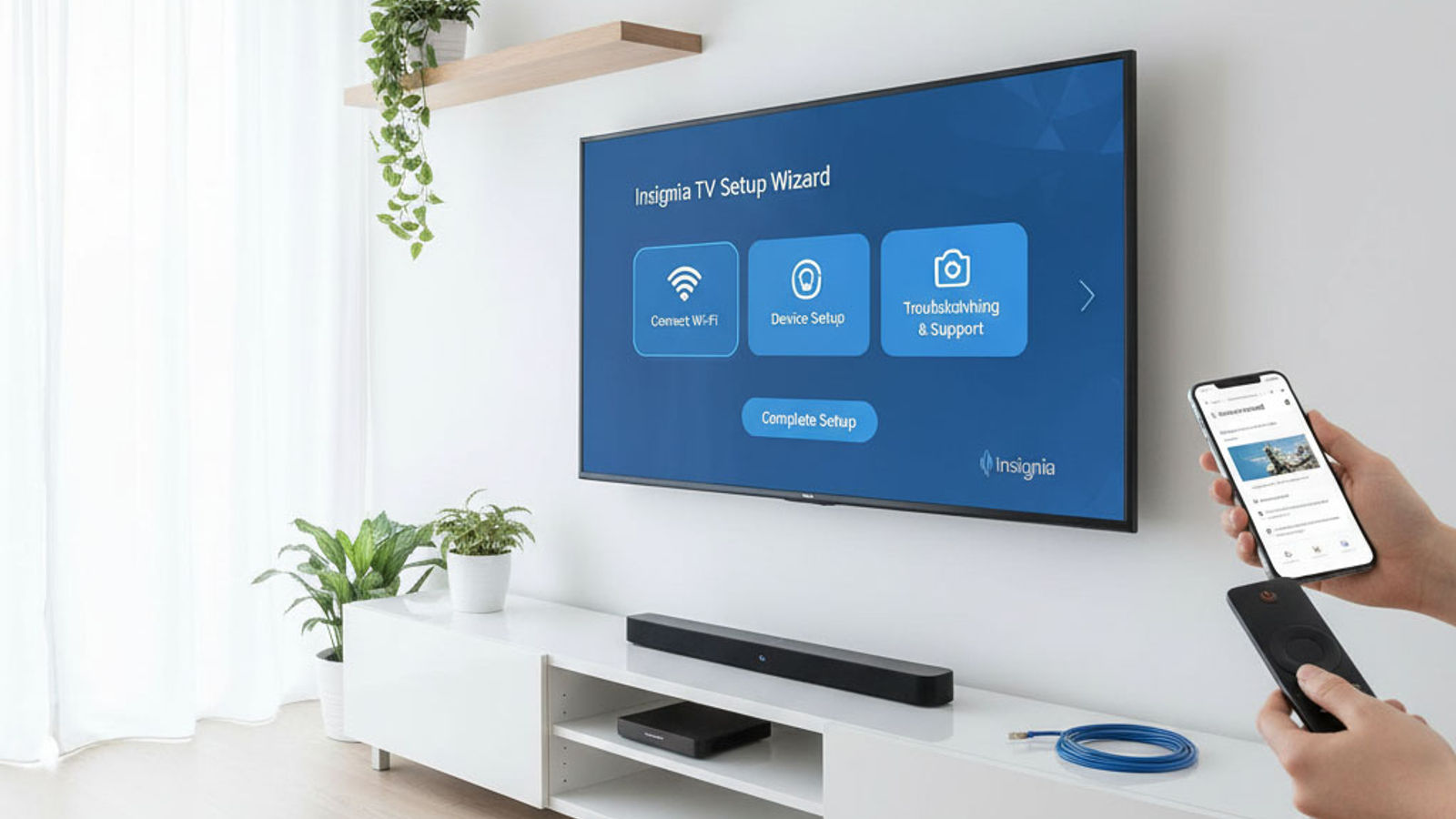
Comprehensive support for Insignia TVs including setup guides, troubleshooting tips, and customer service information. Get the help you need for your Insignia television.
Follow these steps to set up your new Insignia TV:
For the best viewing experience, adjust these settings:
Picture Too Dark or Too Bright: Adjust brightness and backlight settings in Menu > Picture Settings.
Colors Look Unnatural: Try different picture modes or adjust color temperature to "Warm".
Picture Stretching or Zoomed: Press the "*" button on your remote to cycle through aspect ratio options.
Blurry or Soft Picture: Reduce sharpness setting and ensure you're watching HD content on HD channels.
No Sound: Check volume level, ensure TV isn't muted, and verify correct audio output is selected.
Audio Out of Sync: Try switching to a different HDMI input and back, or restart the TV.
Sound Cutting In and Out: Check HDMI cable connections and try a different HDMI port.
Contact Insignia support if you experience:
Have this information ready:
Phone: 1-888-BEST-BUY (1-888-237-8289)
Online Support: bestbuy.com/insignia
In-Store Support: Visit your local Best Buy for hands-on help
Insignia TVs typically come with a 1-year limited warranty. Extended warranties (Geek Squad Protection) are available at purchase. Check your receipt for warranty details.
Insignia TVs run either Fire TV or Roku operating systems, and both require activation codes for streaming apps. If your Insignia TV isn't displaying an activation code when you launch an app, here's how to fix it:
Streaming apps won't display activation codes without an active internet connection. Press the Home button on your Insignia remote, go to Settings > Network, and check your connection status. If you're not connected, you'll need to set up WiFi or ethernet before activation codes will appear. For help getting connected, see our comprehensive Insignia TV WiFi troubleshooting guide.
On Insignia Fire TV models, press and hold the Home button for 3 seconds, then select "Apps" > "Manage Installed Applications", find the problematic app, and select "Force Stop". On Insignia Roku TVs, press the Home button five times, then press Up, Rewind, Rewind, Fast Forward, Fast Forward to access the reset menu, then select the app and choose "Force Close". After force closing, wait 15 seconds before relaunching.
Outdated apps often fail to display activation screens properly. On Fire TV models, go to Settings > Applications > Appstore > Automatic Updates and enable automatic updates. Then manually check for updates in the Appstore. On Roku TV models, press Home > Settings > System > System Update to ensure your system and apps are current.
Sometimes apps get stuck in a partial login state. Open the app, navigate to its settings or account section, and sign out completely. Then close the app, wait 30 seconds, and reopen it. The app should now display a fresh activation screen with a new code.
On Insignia Fire TV: Go to Settings > Applications > Manage Installed Applications > [App Name] > Clear Data and Clear Cache. On Insignia Roku TV: This option isn't available, so uninstall and reinstall the app instead. After clearing data or reinstalling, launch the app and it should present the activation screen.
Whether your Insignia TV requires activation through a service-specific website (like netflix.com/activate) or a device platform website, access problems can halt setup. Here's how to resolve website access issues:
Different apps use different activation websites. Netflix typically uses netflix.com/activate, Hulu uses hulu.com/activate, and so on. Make sure you're visiting the exact URL shown on your TV screen. Fire TV devices may also direct you to amazon.com/code, while Roku devices use roku.com/link. Double-check the URL before assuming there's a technical problem.
If one browser fails to load the activation page, try Chrome, Firefox, Safari, or Edge. Mobile browsers on smartphones often work when desktop browsers fail, so use your phone if your computer isn't cooperating. Ensure your browser is up-to-date and not running aggressive security extensions that might block activation pages.
VPN services and proxy servers can prevent activation websites from loading or working correctly. Temporarily disable any VPN software on the device you're using to access the activation website. If you're unsure whether you're using a VPN, try accessing the activation page using your smartphone's cellular data instead of WiFi.
Corrupted browser cache or cookies can interfere with activation pages. Clear your browser's cache, cookies, and browsing history, then try accessing the activation URL again. Alternatively, use an incognito or private browsing window, which doesn't use cached data.
Occasionally, activation services experience temporary outages. Check the streaming service's official Twitter account or status page for reported issues. Popular sites like DownDetector can show you if other users are experiencing similar problems. If there's a widespread outage, wait 1-2 hours and try again.
If your Insignia TV's activation code refreshes or regenerates before you can enter it, this creates an endless loop that prevents successful activation. These solutions address the root causes:
Activation codes expire for security reasons - typically after 10-15 minutes. To successfully activate before expiration, have the activation website already loaded in your browser before launching the app on your Insignia TV. Have your streaming service account credentials ready to log in quickly. This preparation lets you enter the code within 30-60 seconds of it appearing on screen.
Intermittent WiFi disconnections cause the TV to generate new activation codes. Check your WiFi signal strength in Settings > Network on your Insignia TV. If signal strength is poor (less than 3 bars), move your router closer to the TV or switch to a wired Ethernet connection. A stable connection prevents unexpected code regeneration.
Heavy bandwidth usage from other devices can create brief connection interruptions. During activation, pause any large downloads, video streams, or online games on other devices connected to your network. This ensures your Insignia TV maintains a consistent connection throughout the activation process.
If WiFi stability is problematic, connect an Ethernet cable from your router to your Insignia TV's Ethernet port (usually on the back or side of the TV). A wired connection eliminates WiFi-related interruptions entirely. Complete the activation using ethernet, then switch back to WiFi afterward if preferred.
Rather than rushing through multiple failed attempts, take a moment to prepare everything before starting. Close the app on your TV, ensure your internet is stable, load the activation website, and have your login ready. Only then launch the app again to get a fresh code when you're truly ready to complete the process quickly.
WiFi connection problems during initial Insignia TV setup or streaming app activation can be particularly frustrating. Since many setup steps require internet access, resolving WiFi issues is critical. Here's how to troubleshoot:
Incorrect WiFi passwords are the most common connection failure. When entering your password using the on-screen keyboard, pay careful attention to capitalization - WiFi passwords are case-sensitive. Watch out for commonly confused characters like 0 (zero) vs O (capital letter O), or 1 (one) vs l (lowercase L). If you're unsure of your password, check your router's label or access your router admin panel from a computer.
Many routers broadcast both 2.4GHz and 5GHz WiFi networks. Insignia TVs generally support both bands, but 2.4GHz often provides better reliability for devices far from the router. In your TV's WiFi network list, look for your network name - it may appear twice with different frequencies. Try connecting to the 2.4GHz version first for better stability during activation. Our first-time setup guide explains network selection in detail.
Routers and modems can develop temporary glitches that prevent new devices from connecting. Unplug your modem and router from power for 30 seconds. Plug the modem back in first and wait 2 minutes for it to fully boot (all lights solid). Then plug in the router and wait another 2 minutes. With fresh network equipment, try connecting your Insignia TV to WiFi again.
Weak WiFi signal can cause connection failures during setup. As a test, temporarily move your Insignia TV within 10-15 feet of your router with minimal obstacles between them. If the connection works at close range, your permanent TV location has poor WiFi coverage. Consider using a WiFi range extender, mesh network system, or long Ethernet cable for your final setup.
The TV itself may have a temporary network glitch. Unplug your Insignia TV from power for 60 seconds (a simple power cycle isn't enough - fully unplug it). Plug it back in, wait for it to fully boot, then try connecting to WiFi again. This clears the TV's temporary memory and often resolves mysterious connection issues.
Outdated router firmware can cause compatibility issues with newer TVs. Log into your router's admin panel (usually at 192.168.1.1 or 192.168.0.1) and check for firmware updates. Follow your router manufacturer's instructions to update the firmware, then restart both the router and TV before attempting to connect again.
Overly strict router security settings can block new devices. Log into your router admin panel and check these settings: Ensure DHCP is enabled (most TVs need it), temporarily disable MAC address filtering, and set WiFi security to WPA2 or WPA3 (not WEP, which is outdated). After your TV connects successfully, you can re-enable stricter security if needed.
If WiFi absolutely won't work, use an Ethernet cable to complete setup and activation. Connect an Ethernet cable from your router to your Insignia TV's Ethernet port. This provides a reliable connection for initial setup. Once everything is activated and working, you can troubleshoot the WiFi issue without time pressure, or simply continue using the wired connection for better streaming reliability.
As a last resort before contacting support, reset only the network settings. On Fire TV Insignia models: Settings > Network > Advanced > Reset Network Settings. On Roku TV Insignia models: Settings > System > Advanced System Settings > Network Connection Reset. This clears corrupted network configurations without erasing your apps and settings. After the reset, set up WiFi from scratch. If you need help with persistent WiFi problems, see our guide on fixing Insignia TV WiFi issues.
 Insignia
 Insignia
Insignia
Insignia
Insignia
Insignia
 Insignia
Insignia
Insignia
 Insignia
 Insignia
